
The iOS Remote control feature can be used to connect iAutoscroll to iAutocue or connect multiple iAutocues together.
iAutoscroll is a free app that was designed as a remote for iAutocue and is available from the App Store.
1. If using multiple prompters, select one to be the hosting device.
2. On the hosting prompter display the settings by pressing the Settings button.
3. Press the Remote option. 
4. Select the iOS Remote option. 
5. Press the Host button to start hosting a remote session. 
6. From addition prompters, repeat steps 1 through 4 to display the iOS Remote settings.
7. If using iAutoscroll, press the Settings button to display the settings.
8. Press the Show Remote Group button to display the remote connection dialog. 
*Note: The iAutoscroll app will automatically display the remote group connection dialog when it launches. The dialog can also be accessed from the main remote screen by pressing the remote connection button in the top left of the display. 
9. Press the Join button on all devices that should join the device chosen as the host device. 
10. A list of hosting prompters will be displayed. Select the hosting device from the list. 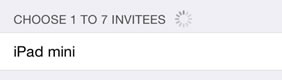
11. For each device joining the group the host will display a message asking to accept the device connection. Press the Accept button to allow the device to connect, or Decline to prevent the connection. 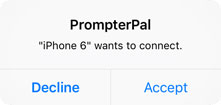
12. When a device is in the process of connecting, it will be displayed in the list of remotes with a broken red circle. 
13. Once a device has successfully connected to the host, it will be displayed in the list of remotes with a complete green circle. 
14. Once a device is successfully connected, press the Done button to display the remote list dialog.
15. Once all required devices are connected, on the host prompter, disable the Allow Connections option to prevent other devices from trying to connect. 
*Note be sure to enable the Allow Connections option if trying to connect a device .
16. On all prompters, press the Settings button to hide the settings.
The devices are now connected. Use the iAutoscroll app to control the host prompter. Actions that happen on one prompter will be sent to all connected prompters and remotes.
See Also:
Display the script in iAutoscroll
Use built-in iAutoscroll from iAutocue to control other iAutocues
Transfer a single file from the prompter to the remote app
Transfer all files from prompter to the remote app